


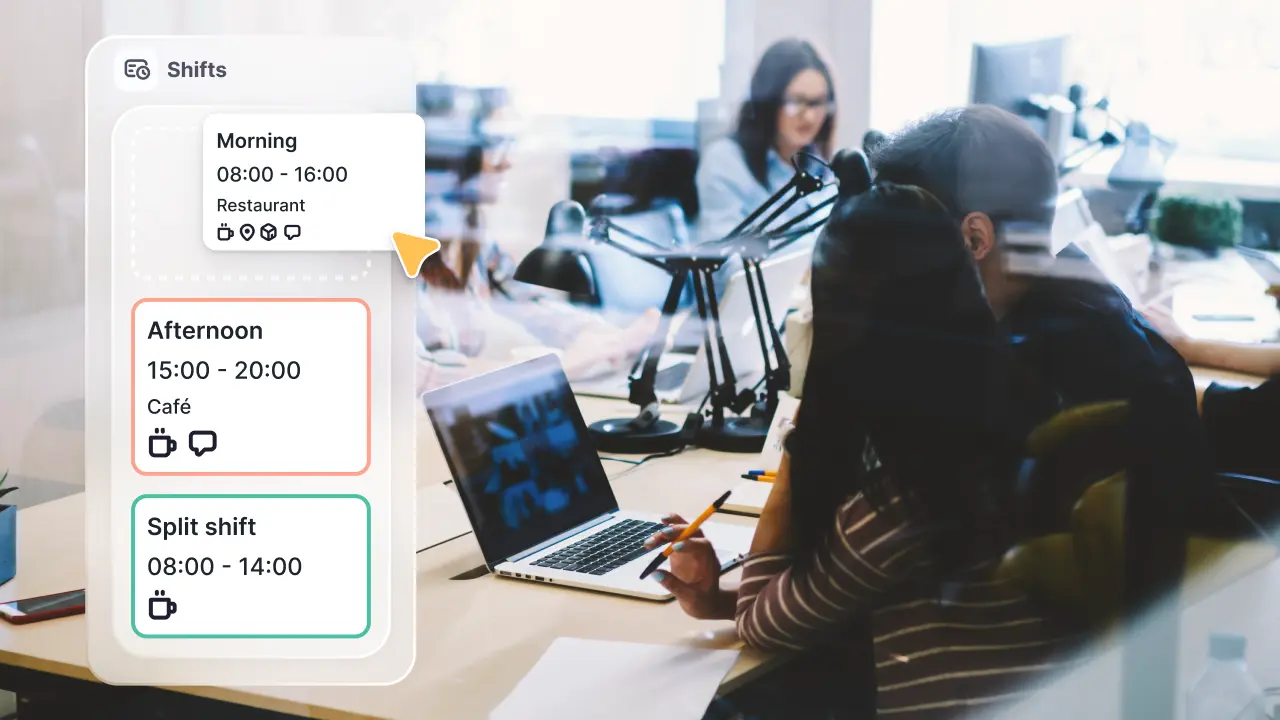
Creating an employee schedule can feel overwhelming, especially when you are trying to keep track of shift times, different roles within your team, time off, and last-minute changes. Many managers choose Google Calendar for employee scheduling because it is simple, free, and easy for teams to access from anywhere.
In this guide, you will learn:
- How to use Google Calendar for employee scheduling
- The benefits and limitations of this method
- A clear, step-by-step setup process
- How to manage and organize shifts more efficiently
- Mistakes to avoid
- When it might be time to upgrade to a more advanced tool like Factorial
Before diving into the steps, let’s look at what Google Calendar does well and where it can fall short when scheduling multiple employees.
Using Google Calendar for Employee Shift Scheduling
Google Calendar is a popular tool for organizing work, tracking meetings, and planning projects, so many managers try to use Google Calendar for staff scheduling too. While it was not built specifically for work shifts, it can still be helpful for small teams that need a simple, accessible way to view upcoming shifts.
Below, we break down both the benefits and limitations so you can get a clear picture of when this tool works and when it may create challenges.
Benefits of Using Google Calendar for Employee Shift Scheduling
For many managers, one of the biggest advantages of Google Calendar is how familiar it feels. Most employees already use it for personal reminders or work meetings, so using it for shift planning does not require training.
Here are the key benefits:
1. Easy to share with your team
Google Calendar lets you invite employees to a shared calendar where they can see all upcoming shifts. This helps everyone stay aligned and reduces the number of texts or emails asking, “When am I working?”
2. Works on all devices
Employees can view their shifts from a phone, laptop, or tablet. If someone updates the calendar, the changes appear instantly for everyone else.
3. Simple to update
Shifts can be edited or moved quickly. If you need to change times or swap roles, you can drag events on the calendar and the update is done.
4. Free to use
Google Calendar is included with any Google account, making it a cost-friendly option for small businesses.
5. Helpful features built in
Even though it is not a full scheduling tool, Google Calendar still offers useful features such as:
- Color coding
- Reminders
- Recurring events
- Multiple calendar views (day, week, month)
These features can make it easier to visualize staff coverage and plan ahead.
Limitations of Using Google Calendar for Employee Shift Scheduling
While Google Calendar can work for small teams looking for an employee calendar, it can become challenging as the team grows or schedules get more complex. It is important to understand these limitations before deciding to rely on it long term.
1. No built-in shift management tools
There are no features for shift trades, automatic scheduling, labor cost tracking, or availability management. Managers must handle everything manually.
2. Hard to manage overlapping shifts
If many employees work at the same time, the calendar can quickly look cluttered, especially in the week view.
3. No automatic conflict alerts
Google Calendar will not warn you if you double-book someone or forget to assign coverage.
4. Time-off management is not connected
Employees must email or message managers about PTO, and it is up to the manager to manually add this into the calendar.
5. Not ideal for larger teams
As teams grow, managing everyone’s shifts on one calendar becomes time-consuming and prone to mistakes.
Step-by-Step Guide to Creating Employee Schedules on Google Calendar
If you decide to use Google Calendar for employee scheduling, the setup process is simple. Below is a step-by-step guide to help you build a schedule that your whole team can follow.
Step 1. Create a New Calendar
To keep your shift schedule separate from personal events, it is best to create a new calendar just for work shifts.
How to do it:
- Open Google Calendar.
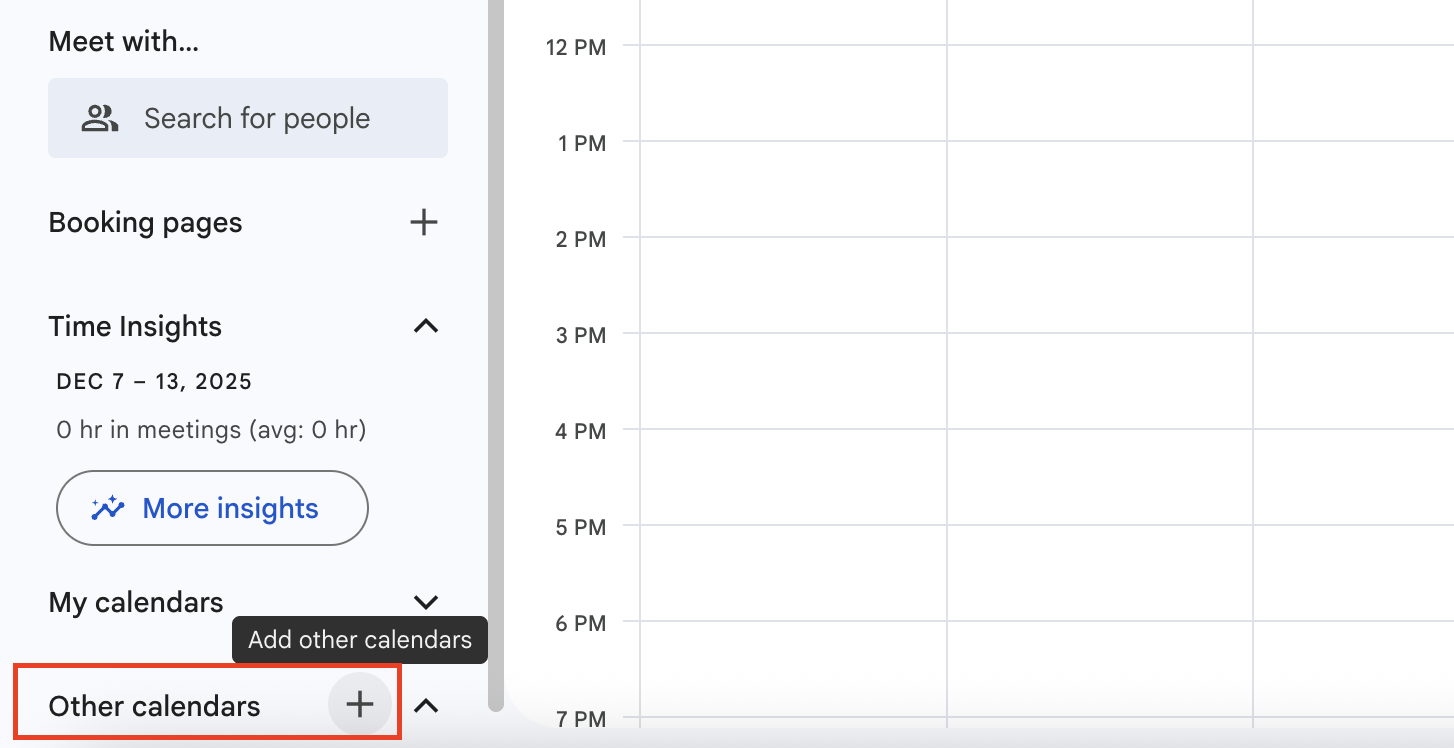
- On the left side, click “Other calendars.”
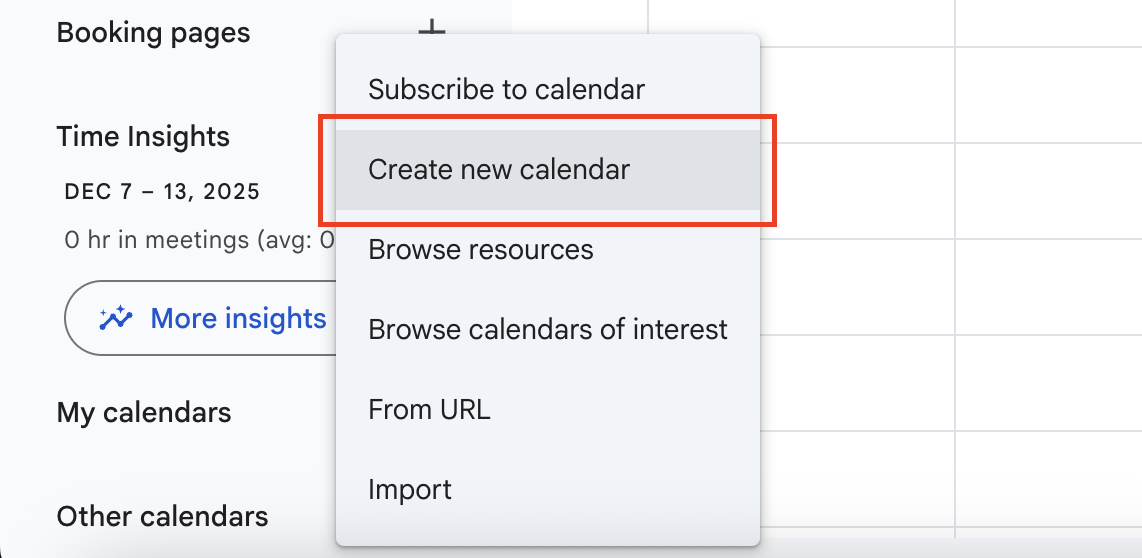
- Select “Create new calendar.”
- Name it something clear like “Team Schedule” or “Employee Shifts.”
- Click “Create calendar.”
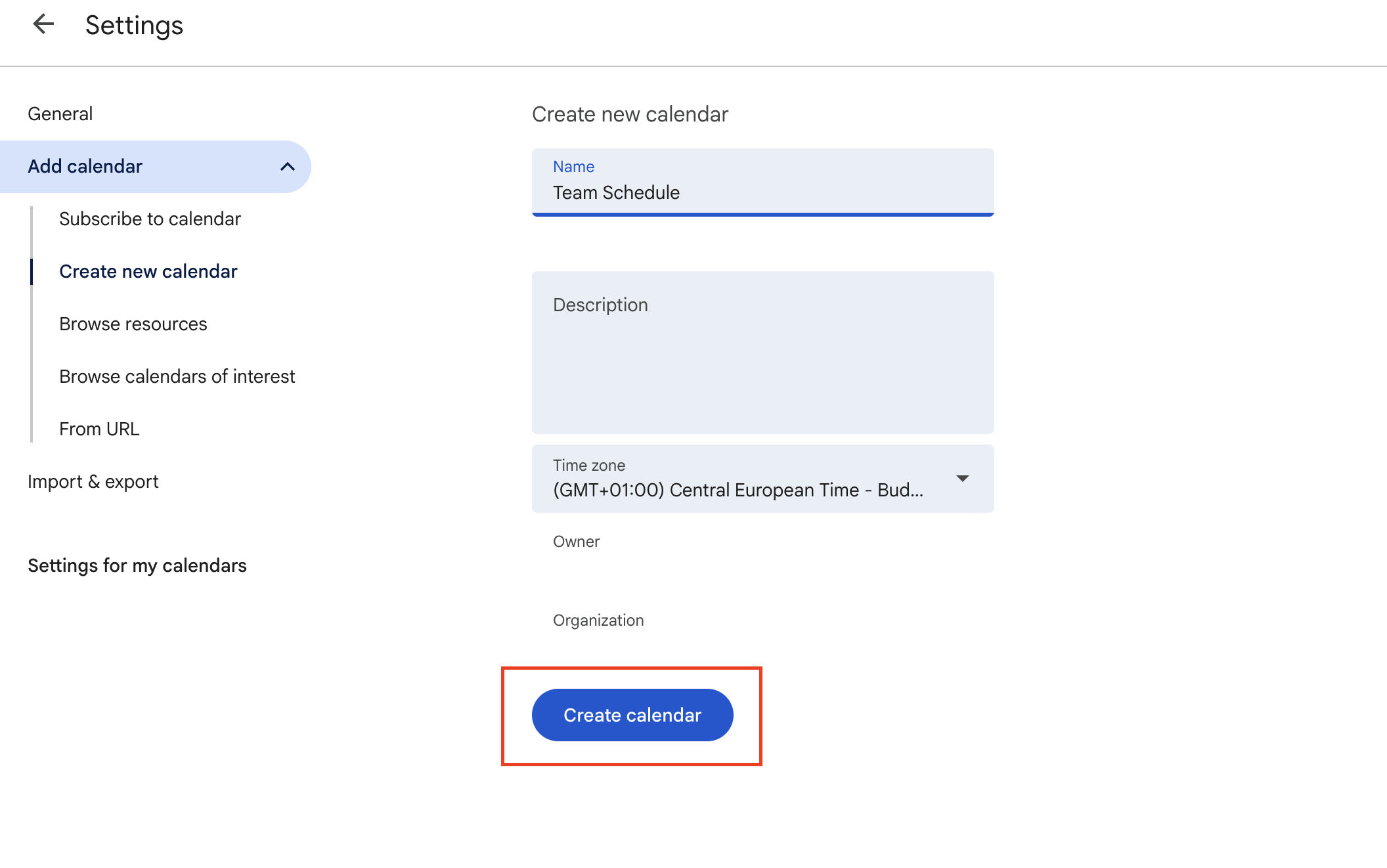
Your calendar is now ready for scheduling.
Step 2. Add All Team Members to Your Calendar
Sharing the calendar with your team ensures everyone sees the same information.
How to do it:
- Open your new calendar’s settings.
- Scroll to “Share with specific people.”
- Enter each employee’s email.
- Choose a permission level. For most teams, “See all event details” works best.
- Click “Send.”
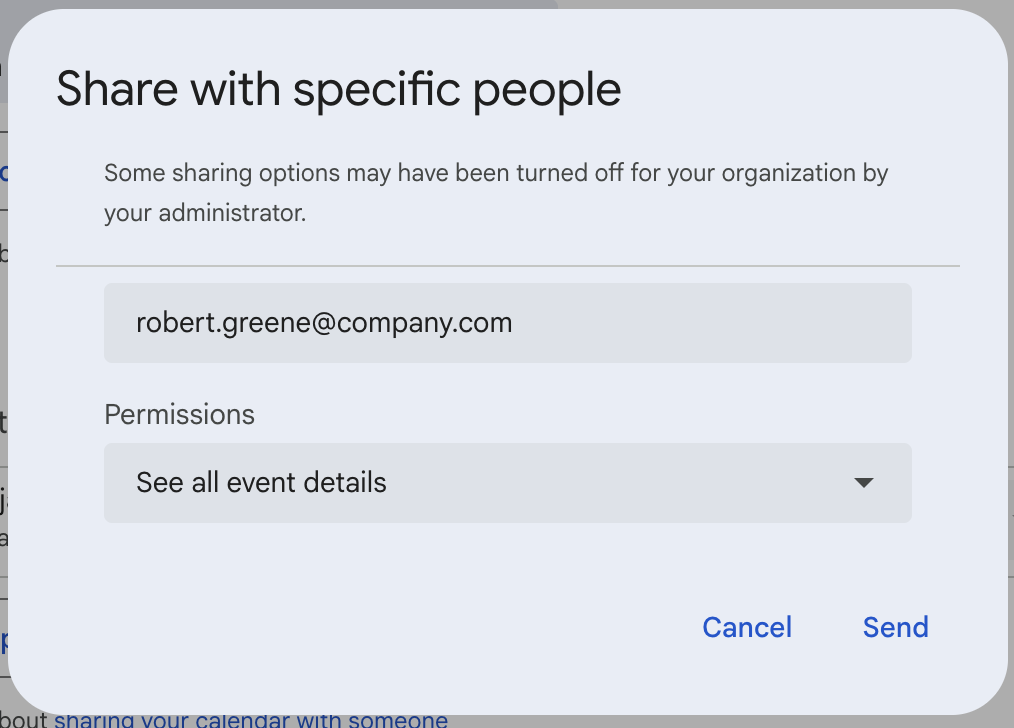
Employees will receive an invitation to view the calendar on any device.
Step 3. Add Upcoming Time Off to the Calendar (Optional)
Adding vacations, sick days, or planned absences helps you avoid scheduling conflicts.
How to do it:
- Create a new event on the day the employee is off.
- Title it something like “Maria PTO” or “ Jake vacation.”
- Adjust the time so it appears as an all-day event.
- Save it.
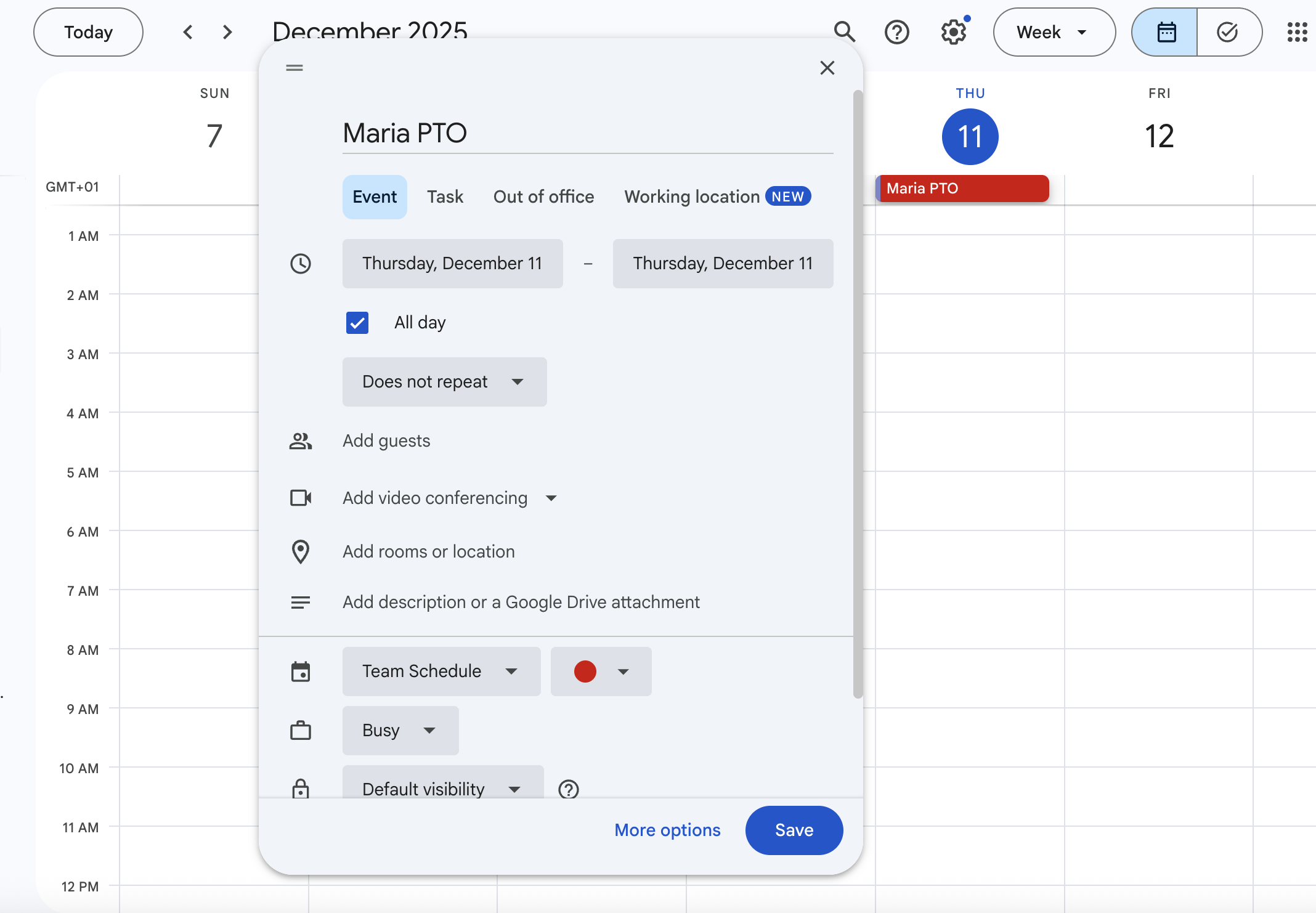
- Tip: Use a unique color (for example, red) for all time-off events. This helps you see staffing gaps more clearly.
Step 4. Create New Events for All Employee Shifts
Now it is time to build the schedule.
How to do it:
- Click on the calendar at the start time of a shift.
- Create an event titled with the employee’s name and role, such as “Sam – Front Desk” or “Ava – Kitchen.”
- Set the start and end time.
- Choose a color for that employee or role.
- Click “Save.”
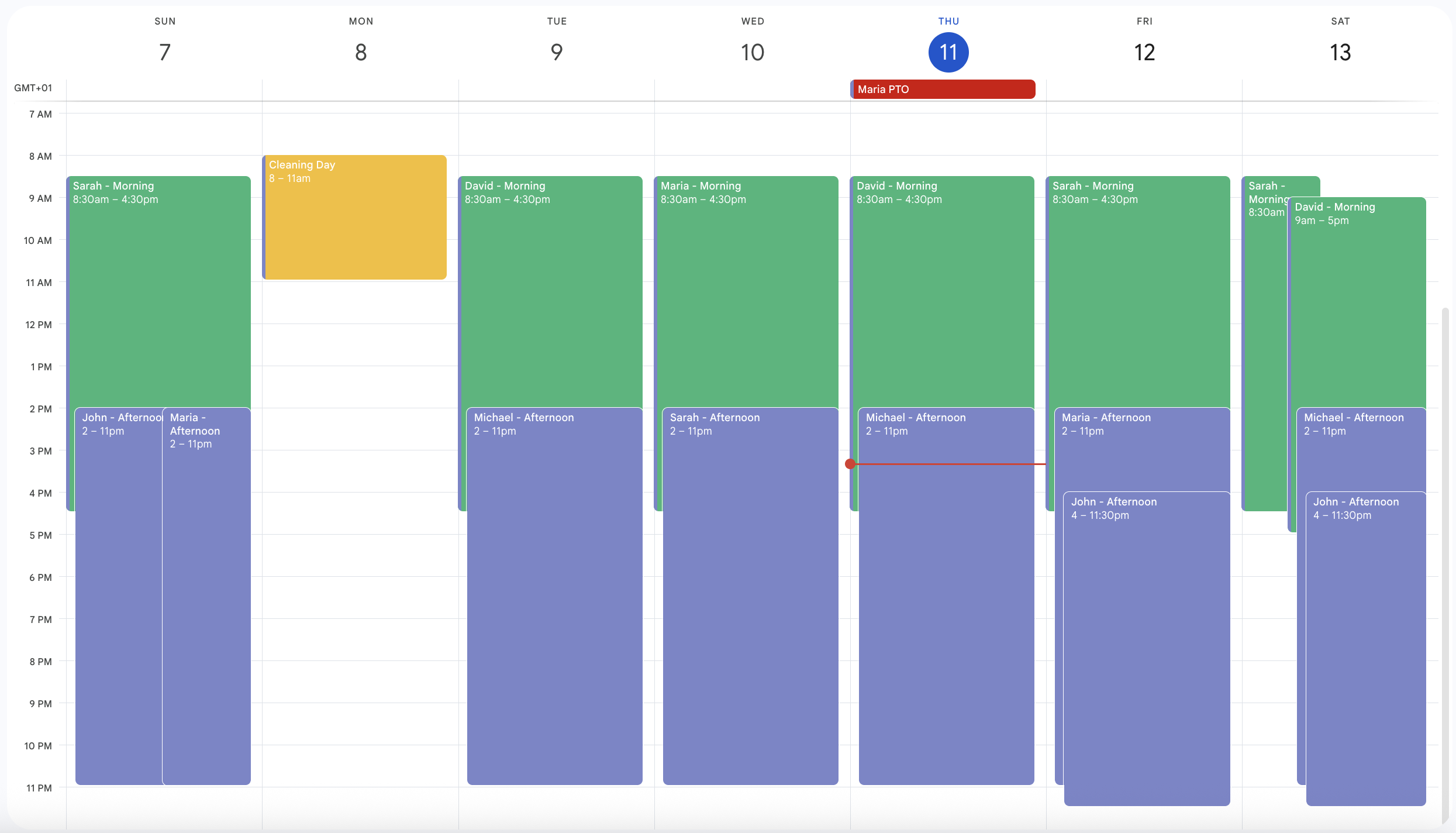
Repeat this for every shift you need to assign.
- Tips:
- Use different colors for roles, such as blue for servers and yellow for cashiers.
- Use the Week view to make sure each day is covered.
- If you need to move a shift, drag it to a new time.
Step 5. Set Events to Recurring for Repeating Shifts (Optional)
If employees have the same shift each week, recurring events save a lot of time.
How to do it:
- Open the shift event.
- Click “Does not repeat.”
- Choose an option like Weekly on Monday or set a custom schedule.
- Save your changes.
Now the shift will appear every week without any extra work from you.
Creating and Managing Shifts on Google Calendar
Once your Google Calendar is set up, the next step is learning how to manage shifts in a way that keeps your schedule organized and easy to understand. Google Calendar does not have advanced shift-planning tools, but with the right methods, you can still build a clean and efficient schedule for your team.
Below are practical tips that help managers stay organized and avoid confusion.
Use Color Coding to Keep Shifts Clear
Color coding is one of the most helpful tools in Google Calendar.
You can assign colors in different ways:
- One color per employee
- One color per role (for example, green for front desk or purple for warehouse)
- One color per location or team
This makes it easier to scan the week and quickly spot coverage gaps or staffing issues.
Create Multiple Views for Better Planning
Google Calendar allows you to switch between Day, Week, Month, and Schedule views.
Each view has advantages:
- Day view shows hour-by-hour coverage
- Week view helps you see shift balance
- Month view helps you plan ahead and track busy periods
- Schedule view lists events in a simple timeline
Managers who switch views often find it easier to understand the full picture.
Turn On Notifications to Prevent Missed Shifts
Setting notifications helps both managers and employees stay on track.
You can:
- Add reminders before shifts
- Send notifications when events are edited
- Receive alerts if someone deletes a shift
These reminders can reduce last-minute no-shows and confusion.
Use Event Descriptions for Important Shift Details
You can add information inside each shift event so employees know exactly what to do.
Details you might include:
- Break times
- Special tasks
- Opening or closing duties
- Notes about expected rush hours
This helps team members start the shift prepared.
Use Drag and Drop for Fast Changes
If you need to move a shift, Google Calendar makes it easy:
- Drag the event to another time
- Extend or shorten the box to change shift length
This helps managers update the schedule in seconds without starting from scratch.
Create Separate Calendars for Large Teams
If you manage multiple departments, consider using more than one calendar.
For example:
- One calendar for kitchen staff
- One calendar for customer service
- One calendar for warehouse teams
You can view them together or separately depending on what you need.
This keeps shifts organized and prevents the schedule from becoming too cluttered as your team grows.
Using Google Sheets for Employee Schedules
While Google Calendar is helpful for showing your team when they work, Google Sheets can help you plan your shifts before adding them to the calendar. Many managers use both tools because each one solves a different problem.
Google Sheets is great for building templates, tracking hours, and planning coverage, while Google Calendar helps employees see their schedules in real time. When you combine the two, you can create a more organized and reliable scheduling system.
Why Use Google Sheets Alongside Google Calendar?
Google Sheets gives managers more control during the planning stage. For example, you can:
- Build shift templates
- Add employee availability
- Track weekly hours
- Copy and paste schedules from week to week
- Highlight conflicts before they reach the calendar
These tools help you avoid mistakes and save time when creating the final schedule.
How to Use Google Sheets to Support Your Calendar Schedule
Here is how many managers use Google Sheets and Google Calendar together.
1. Create a Shift Template in Google Sheets
A template helps you stay consistent from week to week.
Your sheet may include:
- Employee names
- Days of the week
- Start and end times
- Total hours
- Notes or roles
This becomes your “master view” before publishing shifts.
2. Add the Sheet to Your Calendar with a Simple Link
When the sheet is complete, you can link it to your calendar:
- Open the Google Sheet.
- Click Share.
- Copy the link.
- Paste the link into the description of your weekly calendar event or at the top of the schedule calendar.
Employees can click the link to see the full template anytime.
3. Sync the Sheet to Google Calendar (Optional)
Some managers use third-party add-ons to sync Sheets to Google Calendar automatically.
You can use these tools to:
- Turn each row in a sheet into a shift
- Send them directly to your calendar
- Update shifts on both tools at once
This is helpful for bigger teams that want to reduce manual work.
Want to cut down the manual work? Check out our free employee shift schedule template!
Benefits of Using Google Sheets with Google Calendar
Using the two together can:
- Reduce scheduling errors
- Make planning easier
- Help managers stay organized
- Give employees both a weekly view and a detailed template
- Save time when copying or updating schedules
Google Sheets is not a scheduling system on its own, but when used with Google Calendar, it gives managers more control and flexibility.
Things to Avoid When Creating Employee Shifts on Google Calendar
Google Calendar is helpful for organizing shifts, but there are common mistakes that can cause confusion or missed shifts. Avoid these pitfalls to keep your schedule accurate and easy to follow.
- Not keeping the calendar updated: If someone swaps shifts, calls in sick, or requests time off, make sure to update the calendar immediately. Check the week ahead regularly.
- Ignoring time zones: For remote teams or employees in different locations, double-check that everyone’s time zone is correct and note differences in event descriptions.
- Skipping color coding: Use colors for roles, teams, or shift types so the calendar is easier to read. Include a simple color legend.
- Overlapping shifts: Google Calendar does not warn about conflicts. Review the Week view and check each day to avoid double-booking.
- Forgetting time-off requests: Add PTO, sick days, and holidays to prevent gaps or conflicts. Use a consistent color for time off and remind employees to submit requests early.
- Not setting permissions: Make sure all employees can see the calendar and access event details. Confirm they can view it on their devices.
- Skipping team reviews: Send weekly reminders and review the schedule in meetings. Encourage employees to turn on notifications for updates.
By avoiding these mistakes, you can keep your Google Calendar schedules clear, reliable, and easy for everyone to follow.
Best Practices for Google Calendar Shift Scheduling
Using Google Calendar for scheduling works well if you follow a few simple tips.
- Keep your calendar organized: Use color codes for roles or employees, give clear event titles like “Ella – Front Desk,” and mark PTO or sick days in a separate color. Use the Week or Day views to spot coverage gaps.
- Add details in event descriptions: Include tasks, breaks, special instructions, or links to training materials so employees know what to do during their shifts.
- Set up notifications: Managers can set reminders for shift starts, changes, or upcoming time off. Employees can also turn on alerts to avoid missed shifts.
- Review schedules weekly: Check for missing shifts, overlaps, or employees working too many or too few hours to prevent problems before they happen.
- Combine with Google Sheets: Plan a draft schedule in Sheets to track hours, coverage, and availability, then transfer the final version to Calendar.
- Ask your team for feedback: Make sure the calendar is easy to read, the color coding is helpful, and notifications are working.
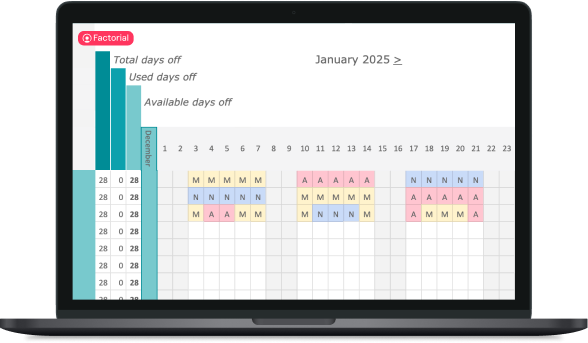
Switch to a full scheduling tool as your team grows. Google Calendar works best for small teams. For more complex scheduling, a tool like Factorial automates shifts, tracks PTO, and makes managing coverage much easier.
Shift Management With Factorial
Google Calendar can work for basic schedules, but larger teams need a smarter solution. Factorial helps managers save time by automatically creating shifts based on employee availability, time off, and required roles. It prevents double-booking and ensures coverage is always accurate. Employees can easily request shift swaps, and managers can approve changes with one click. Shift templates make planning faster, while automatic notifications keep everyone informed. A clear dashboard shows who is working, who is off, and which roles still need coverage, helping managers stay organized and confident in their schedules.
Google Calendar Employee Scheduling FAQs
1. How do I create a schedule for my employees on Google Calendar?
To create a schedule, start by making a new calendar for your team. Add all employees, then create events for each shift. You can use different colors, set reminders, and repeat events for regular shifts. Make sure to include any PTO or time off so the schedule is accurate.
2. How do I use Google Calendar to create a schedule?
Use Google Calendar like a planner. Add shifts as events, set start and end times, and invite the employees who will work each shift. You can also add details in the event description to explain tasks or special instructions.
3. How do I make a work schedule for employees?
First, collect availability and time-off information. Then create events for each shift in the calendar, assign employees, and use color codes for different roles. Regularly review the schedule to avoid conflicts or gaps.
4. How do I use Google Sheets for employee scheduling?
Google Sheets is great for planning a draft schedule. You can create a weekly or monthly template, track hours, and organize availability. Once the plan looks right, you can copy it into Google Calendar to share with your team.
5. How do I add a workforce schedule to Google Calendar?
Create a new calendar specifically for employee shifts. Add all team members as participants. Then create events for each shift, assign employees, and send notifications. You can also set recurring events for repeating schedules.